Buying a Used Phone: 10 Checks to Avoid Costly Mistakes
Buying a used phone without bad surprises: 10 checks to make (IMEI, battery, iCloud, screen, warranty) before you pay, online or in store.
By Hamzah AnwarOwner of BuyCellFix and BuyCellTrade
Published November 8, 2026 · Updated November 19, 2026 · 5 min read
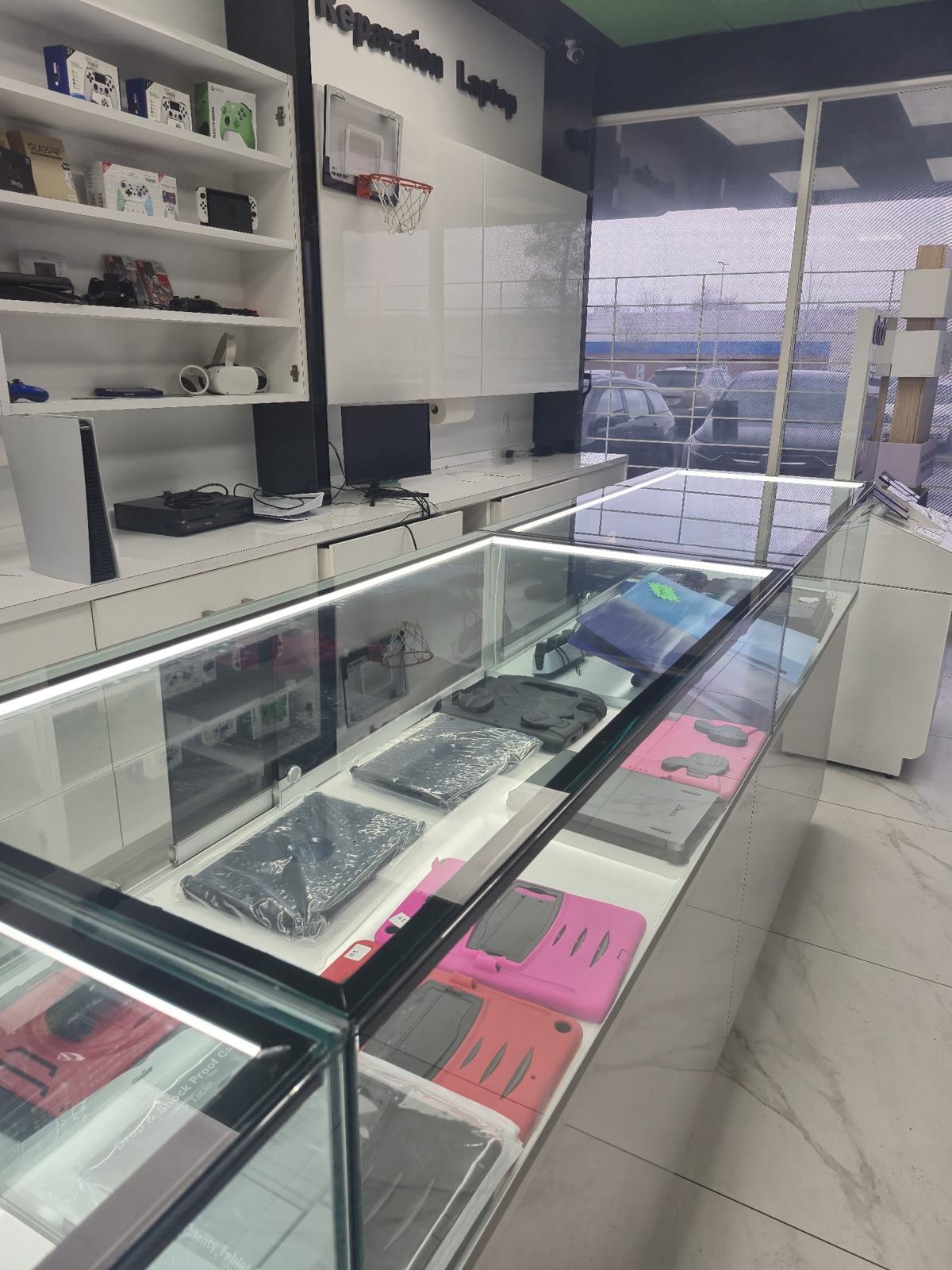
A previous-generation iPhone or Samsung does the job very well, and costs much less than a new one. But buying a used phone comes with risks: a stolen device, an iCloud lock, a worn-out battery or a screen replaced with a low-quality part.
Here are the 10 checks to make before you pay, whether you're buying on Marketplace, from a private seller or in store.
Contents
- 1. Check the IMEI
- 2. Make sure the iCloud or Google lock is removed
- 3. Confirm the phone is unlocked
- 4. Look at battery health
- 5. Test the touchscreen
- 6. Check for replaced parts
- 7. Test cameras, mics and speakers
- 8. Test Face ID, fingerprint and buttons
- 9. Check charging and connectivity
- 10. Ask for a warranty
- Buying a used phone in store: why it's safer
- FAQ
1. Check the IMEI
The IMEI is the phone's unique ID number. Dial *#06# to display it, then enter it on devicecheck.ca, the Canadian service that shows whether a device has been reported lost or stolen.
A phone reported stolen can be blocked by every Canadian carrier: it won't be able to make calls. If the seller won't give you the IMEI, walk away.
2. Make sure the iCloud or Google lock is removed
This is the most common trap. An iPhone still tied to the previous owner's Apple Account is unusable after a reset.
- On iPhone: go to Settings. If a name appears at the top, the device is still signed in. Ask the seller to sign out and erase the iPhone in front of you.
- On Android: after a reset, the device should start without asking for the previous Google account.
Never accept "I'll remove it later".
3. Confirm the phone is unlocked
A "locked" phone only works with one carrier. To check, put in your own SIM card: if you get signal and can make a call, you're good.
On iPhone you can also go to Settings, General, About, and look for Carrier Lock: it should say "No SIM restrictions".
Also check the device isn't still being financed with a carrier. An unpaid balance can lead to a block.
4. Look at battery health
On iPhone: Settings, Battery, Battery Health & Charging. Maximum capacity shows the wear. Above 85% is very good. Below 80%, plan for a battery replacement soon.
On Samsung, the Samsung Members app has a battery diagnostic. On Pixel, check Settings, Battery.
5. Test the touchscreen
Open a notes app and draw lines all over the screen, corners included. They should be continuous.
Then display a fully white image, then a fully black one. Look for spots, lines, dead pixels or uneven tint. A screen with yellowish areas or a "burned-in" image has usually seen heavy use.
6. Check for replaced parts
On a recent iPhone, go to Settings, General, About. A "Parts and Service History" section shows whether the screen, battery or camera has been replaced, and whether the parts are genuine Apple.
A repair isn't a problem in itself, but a low-quality part can cause trouble: a dimmer screen, imprecise touch or a battery that drains fast.
7. Test cameras, mics and speakers
- Take a photo and a video with every camera, front and back.
- Record a voice memo and play it back.
- Make a call to test the earpiece and microphone.
- Play music at full volume to test the speaker.
Crackling sound or blurry photos can point to water damage or a drop.
8. Test Face ID, fingerprint and buttons
Set up Face ID or fingerprint: if the option is greyed out, the sensor is damaged, and that's expensive to fix.
Press every button too: volume, power, the side button or Action button depending on the model. They should respond firmly.
9. Check charging and connectivity
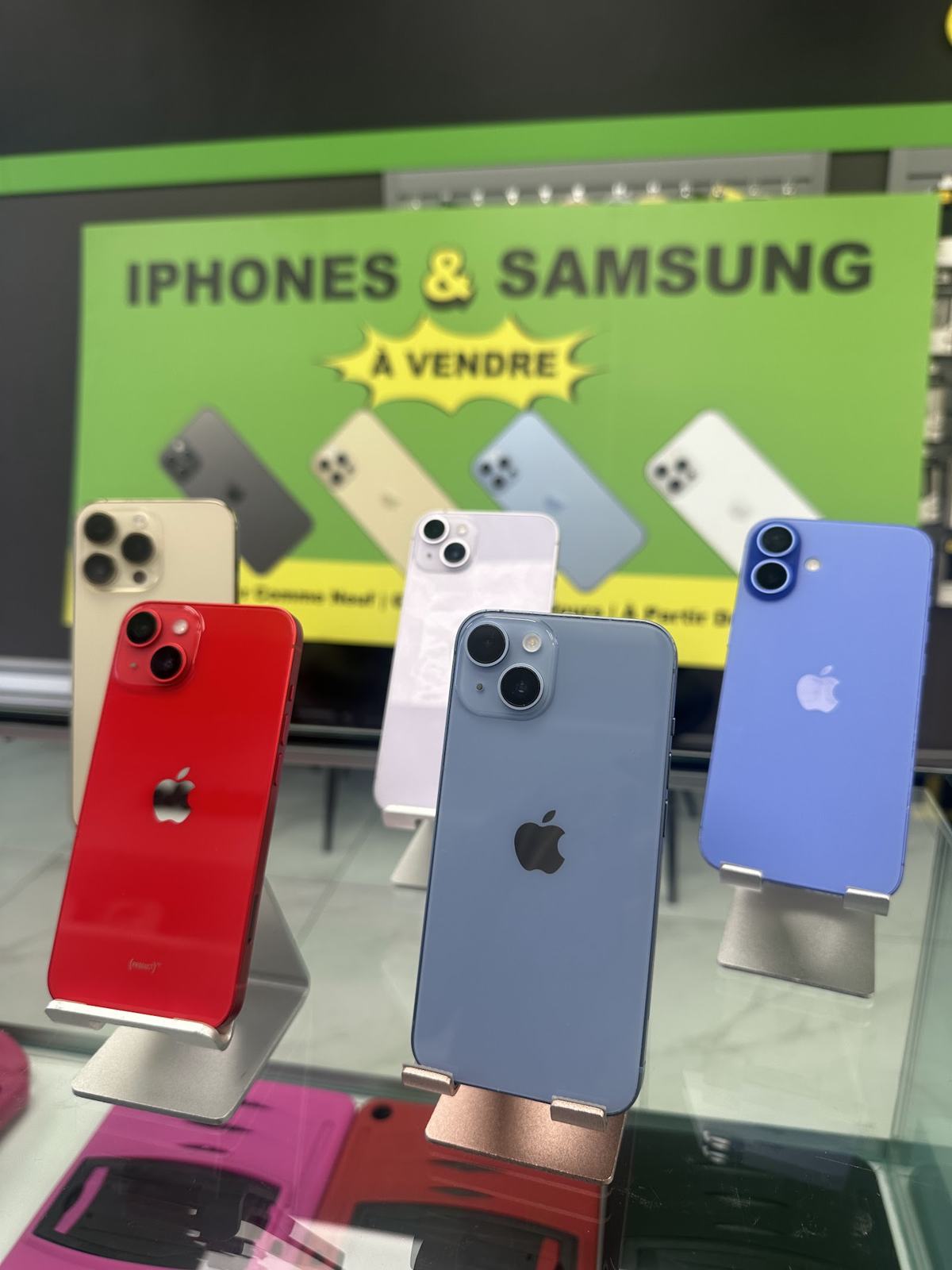
Plug the phone in: it should charge normally, with no loose connection when you wiggle the cable. Then test Wi-Fi, Bluetooth and GPS with a maps app.
If the device supports it, test wireless charging too.
10. Ask for a warranty
This is the biggest difference between buying from a private seller and buying in store. A private seller sells the phone "as is": if the battery dies a week later, you have no recourse.
At BuyCellTrade, every device we sell is covered by a 90-day warranty. If there's a problem, we repair first; if that's not possible, we replace the device, and as a last resort, we refund you.
Buying a used phone in store: why it's safer
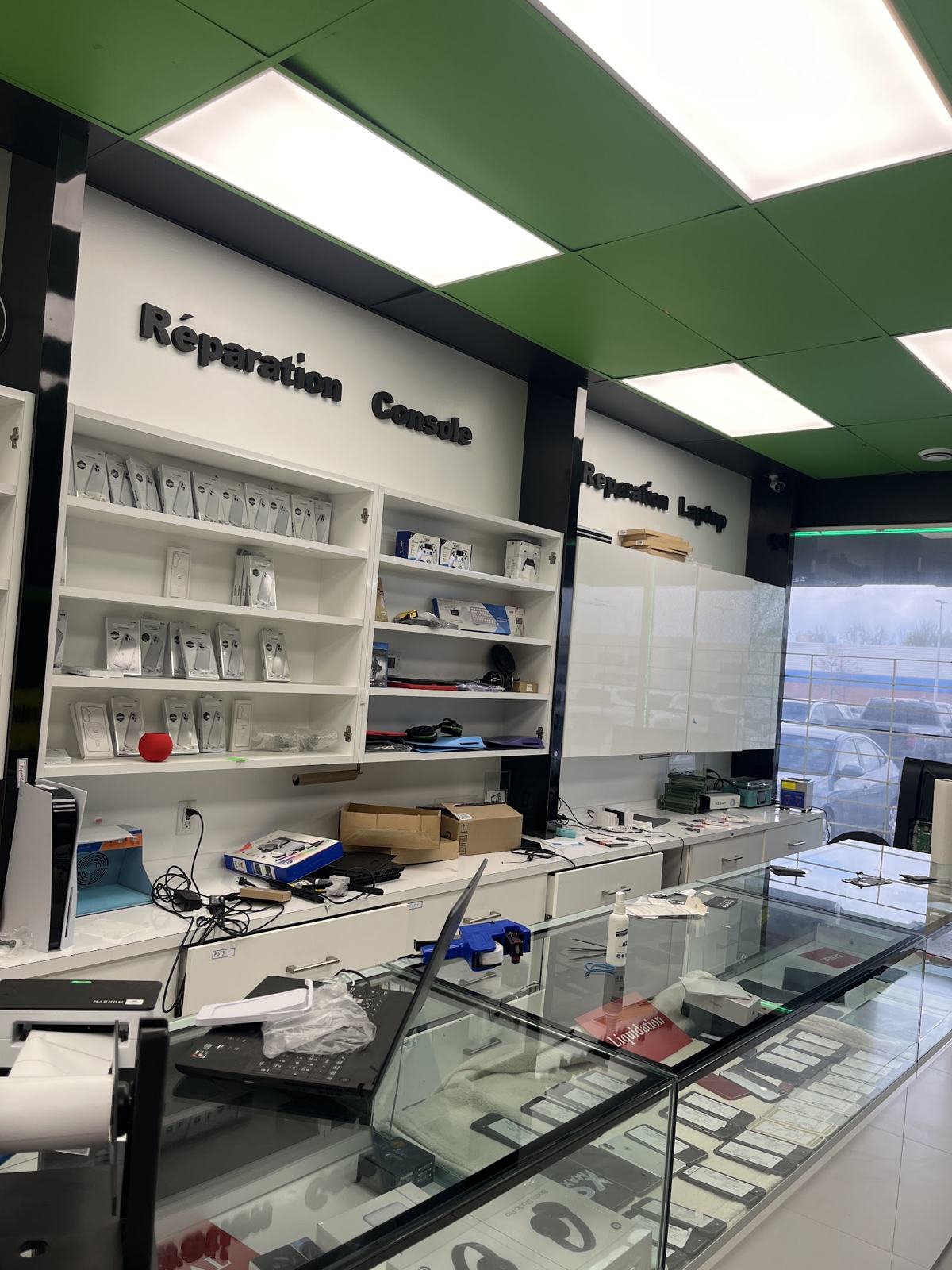
Doing all 10 checks yourself takes time, and some are hard to do in a parking lot with a seller in a hurry. In store, that work is already done.
Every phone in our inventory is:
- Phonecheck tested, an automated diagnostic of more than 80 points that produces a report.
- IMEI checked, not reported lost or stolen.
- Free of any iCloud or Google lock.
- Unlocked, compatible with every Canadian carrier.
- Graded with a clear condition, explained in our condition guide.
- Covered for 90 days.
The inventory is updated daily, and you can see the device in person before buying at our Laval and Montreal stores. Have an old phone? Trade it in: its value comes straight off your purchase. Get an estimate with our calculator.
FAQ
Is a used phone as reliable as a new one?
A tested phone with a warranty, yes, for the vast majority of uses. The main wear point is the battery, which is why checking its capacity matters.
What's the difference between used, refurbished and renewed?
The terms vary by seller. What matters isn't the label but what was tested and the warranty offered. Always ask for the diagnostic report.
Can I reserve a phone before coming in?
Yes. From a model's page in our inventory, you can reserve the device and come see it in store.
Do you accept card payments?
For in-store purchases, ask at the counter about accepted payment methods. When we buy devices from you, we pay cash.
Looking for a phone? Browse our used phone inventory, Phonecheck tested and covered for 90 days, or visit our Laval or Montreal store.