Prepare Your iPhone Before Selling: 9 Essential Steps
Prepare your iPhone before selling in 9 steps: backup, iCloud, Find My, eSIM, Apple Watch and a full reset. The complete checklist, nothing missed.
By Hamzah AnwarOwner of BuyCellFix and BuyCellTrade
Published November 8, 2026 · 6 min read
A badly prepared iPhone means a sale that stalls at the counter, or worse, photos and accounts that stay accessible. Taking 15 minutes to prepare your iPhone before selling protects your data and makes sure you get the best offer.
Here's the complete list, in order. Follow it and your iPhone will be ready to sell, trade in or give away.
Contents
- Step 1: Make a full backup
- Step 2: Transfer your data to the new device
- Step 3: Move your two-factor codes
- Step 4: Unpair your Apple Watch and AirPods
- Step 5: Turn off Find My
- Step 6: Sign out of iCloud and the App Store
- Step 7: Turn off iMessage and FaceTime
- Step 8: Remove the SIM or transfer the eSIM
- Step 9: Erase all content
- What to bring with the iPhone
- The 5 most common mistakes
- FAQ
Step 1: Make a full backup
Before touching anything, back up. It's the only way to get your photos, messages and settings back on your next device.
- iCloud backup: Settings, your name, iCloud, iCloud Backup, Back Up Now. Stay on Wi-Fi until it finishes.
- Computer backup: plug in the iPhone, then use Finder on a Mac or the Apple Devices app on Windows. Tick "Encrypt local backup" to also keep your passwords and Health data.
Check the date of the last backup before moving on.
Step 2: Transfer your data to the new device
If you already have your new iPhone, use Quick Start: put both devices side by side and follow the prompts. Everything is copied directly, apps included.
Switching to Android? Apple's "Switch to Android" app, or Samsung's or Google's transfer tool, brings over your contacts, photos and messages.
Step 3: Move your two-factor codes
This is the most costly thing to forget. If your two-factor sign-in codes live in Google Authenticator, Microsoft Authenticator or a banking app, they don't always move over automatically.
- Open each authenticator app.
- Use its export or transfer feature to move codes to the new device.
- Test a sign-in on the new phone before erasing the old one.
Check your banking apps too: some tie your account to a single device.
Step 4: Unpair your Apple Watch and AirPods
A paired Apple Watch must be unpaired before you erase the iPhone. Open the Watch app, tap All Watches, then the info button next to your watch and Unpair Apple Watch. A backup of the watch is made along the way.
For AirPods and other Bluetooth accessories, go to Settings, Bluetooth, and tap Forget This Device.
Step 5: Turn off Find My
Find My turns on Activation Lock: as long as it's on, the iPhone stays tied to your Apple Account and nobody can use it after you.
Go to Settings, your name, Find My, Find My iPhone, and turn it off. Enter your Apple password to confirm.
An iPhone that arrives at the store with Find My still on can't be bought at full value. It's the single most important item on this list.
Step 6: Sign out of iCloud and the App Store
Still in Settings, tap your name, scroll to the bottom and tap Sign Out. Choose which data to keep a copy of on the device (it will be erased in step 9 anyway), then confirm.
This also signs you out of the App Store, Apple Music and other Apple services. Apple summarizes the whole process on its page What to do before you sell or give away your iPhone.
Step 7: Turn off iMessage and FaceTime
If you're switching to an Android phone, turn off iMessage in Settings, Messages, and FaceTime in Settings, FaceTime. Otherwise your iPhone contacts may keep sending you blue messages that never arrive.
Already sold the device? Apple has an online tool to deregister your number from iMessage remotely.
Step 8: Remove the SIM or transfer the eSIM
- Physical SIM: pop it out with the ejector tool or a paper clip and put it in the new phone.
- eSIM: transfer it during Quick Start or contact your carrier. Don't delete it before the line is active on the new device.
Also check with your carrier that the iPhone is fully paid off. A device still being financed can be blocked and lose a lot of value.
Step 9: Erase all content
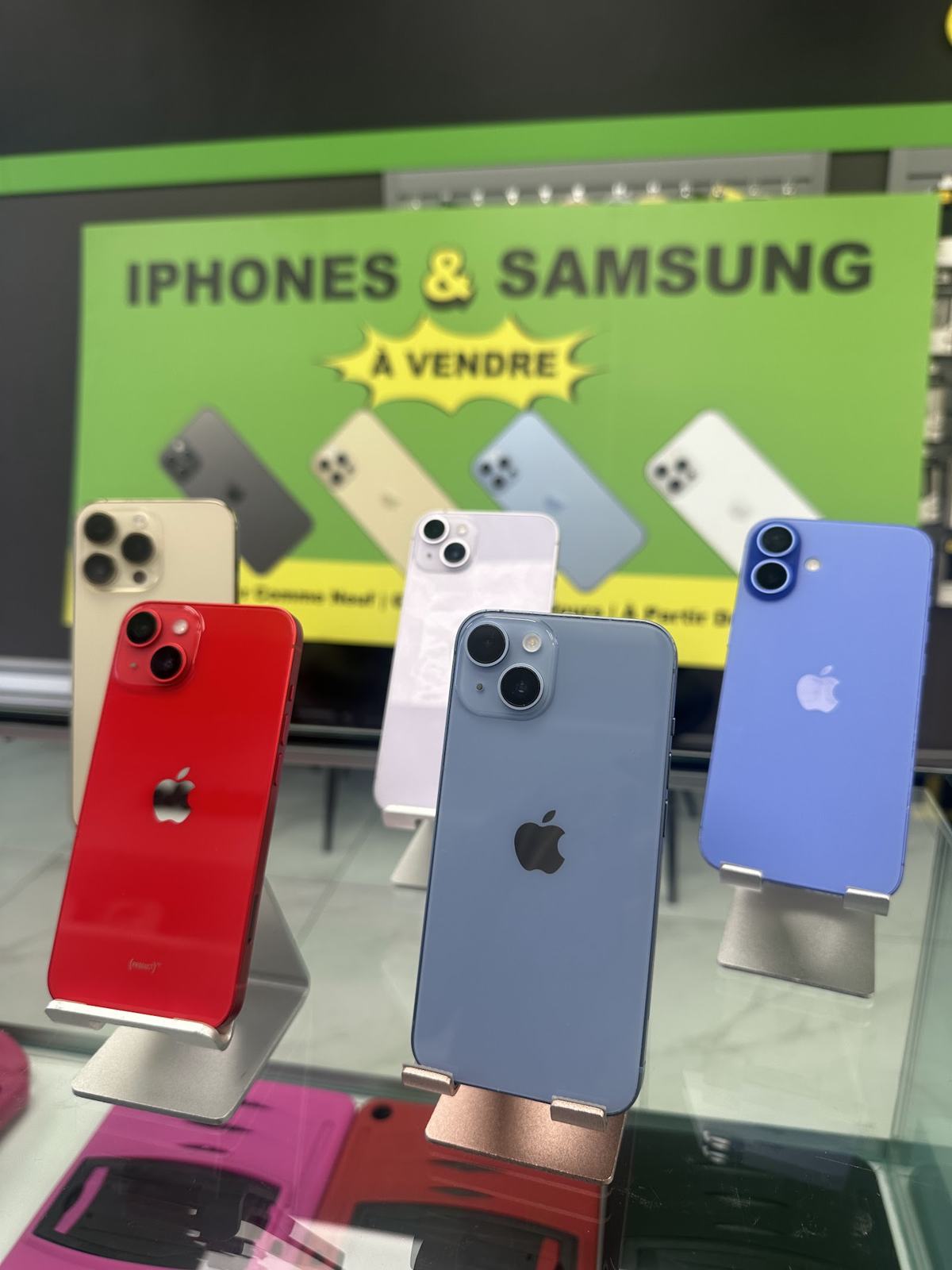
Last step: Settings, General, Transfer or Reset iPhone, Erase All Content and Settings. The iPhone restarts on the welcome screen, as if it just came out of the box.
When it shows "Hello", it's ready. Don't set it up again: leave it on that screen.
What to bring with the iPhone
These aren't required, but they help:
- The original box, if you still have it.
- The charging cable.
- Your photo ID: it's required to sell in store.
Remove your case and screen protector if you can: the inspection goes faster.
The 5 most common mistakes
At the counter we see the same slip-ups again and again. Here they are, so you can avoid them.
- Erasing the iPhone without signing out of iCloud. The device restarts, but Activation Lock stays on. You have to turn it back on, sign in and start over.
- Forgetting the authenticator app. Two-factor codes disappear with the erase, and getting back into some accounts can take days.
- Deleting the eSIM too early. Without an active line, you can't receive the text code that confirms your new phone.
- Not checking the last backup. An iCloud backup from months ago won't have your recent photos.
- Coming without photo ID. It's required for every sale in store, no exceptions.
Five minutes of checking saves you a second trip.
Prepare your iPhone before selling: what's next?
Once your iPhone is ready, get an offer in 30 seconds with our trade-in calculator. The offer is honoured for 7 days in store, after a quick inspection.
Then visit one of our stores, no appointment needed:
- Laval: 1112 Curé-Labelle Blvd., 514-660-4532
- Montreal: 5275 Queen Mary Road, Suite 101, near Snowdon metro, 514-467-0751
Leave with cash or trade-in credit on a device from our inventory, tested and covered for 90 days. Rather repair than sell? Our BuyCellFix workshop handles screens and batteries.
FAQ
I forgot my Apple password. What now?
Recover it at iforgot.apple.com before coming in. Without the password you can't turn off Find My, and the iPhone can only be bought for parts.
My iPhone won't turn on. Can I still sell it?
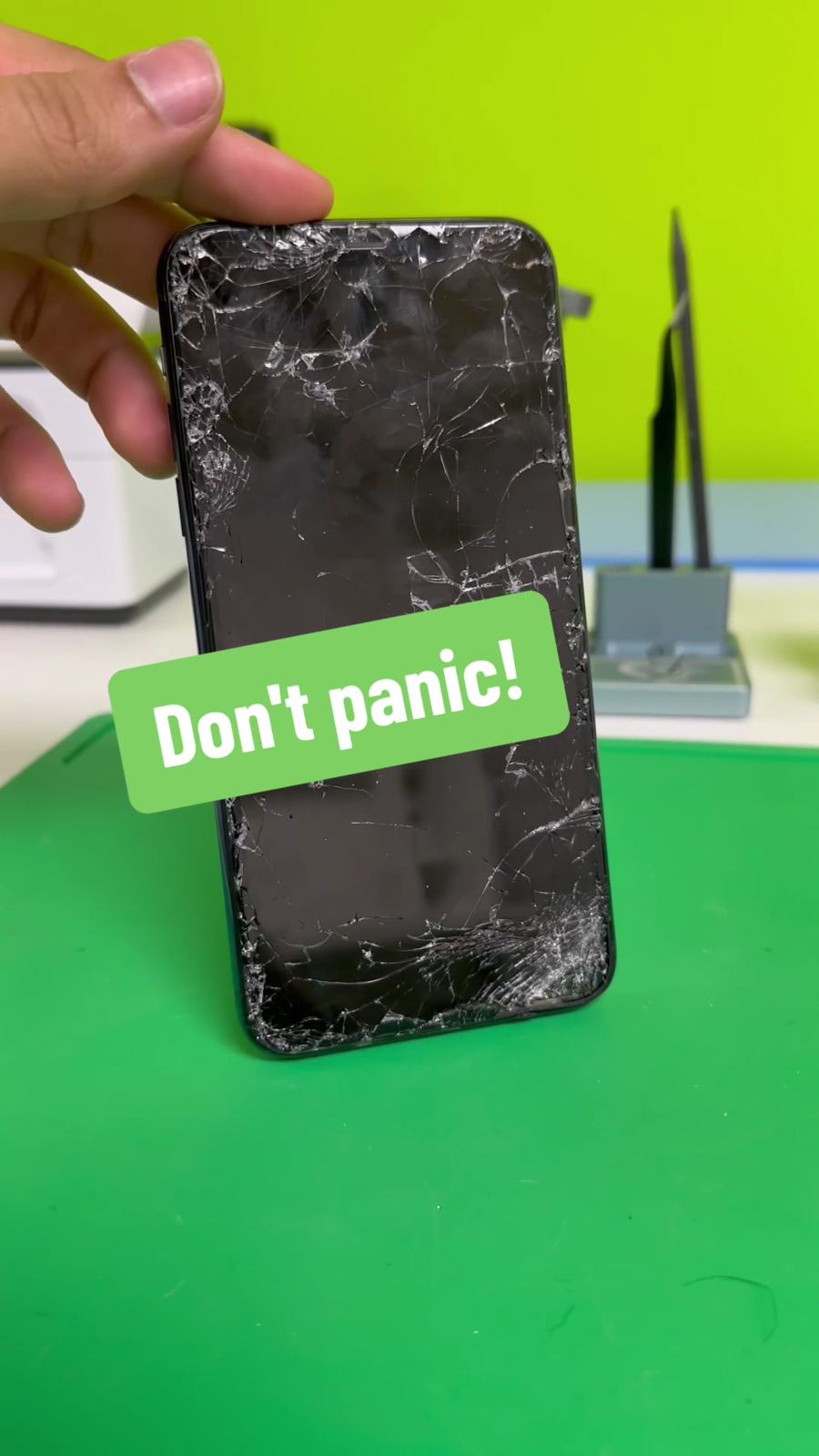
Yes. We buy iPhones in any condition. If you can turn off Find My remotely at icloud.com, do it: it raises the offer.
Can you help me prepare it in store?
Yes. If a step has you stuck, we'll help at the counter. You'll just need your Apple password.
Does a reset really delete everything?
Yes, erasing a modern iPhone makes the data unrecoverable.
Ready? Once all 9 steps are done, get your price with our trade-in calculator or come straight to our Laval or Montreal store.